Store Warden Team
Strategy Lead • Store Warden
Source Code---
title: "How to Protect Your Shopify Store from the Public During Updates (A Step-by-Step Tutorial)"
date: "2026-03-11"
slug: "protecting-shopify-store-from-public-during-updates"
excerpt: "Learn how to put your Shopify store into maintenance mode, use IP whitelisting, and ensure smooth updates without impacting customer experience or SEO."
author: "Ratul Hasan"
category: "Tutorials"
readTime: "12 min read"
primaryKeyword: "protecting Shopify store during updates"
secondaryKeywords: ["Shopify maintenance mode", "Shopify coming soon page", "Shopify downtime", "Shopify IP whitelisting", "Shopify update best practices", "Shopify theme updates"]
image: '/images/blog/protecting-shopify-store-from-public-during-updates-hero.jpg'
ogImage: "[PLACEER:HERO_IMAGE]"
featured: false
---

# How to Protect Your Shopify Store from the Public During Updates (A Step-by-Step Tutorial)

Imagine pushing a critical theme update or a new app integration to your live Shopify store, only for a customer to land on a broken page, an incomplete product listing, or worse – a buggy checkout process. Every minute your store is broken or partially functional, you're not just losing sales; you're eroding customer trust and potentially damaging your brand's reputation. For a store generating $324,000 annually, even a brief 15-minute period of unplanned, broken downtime during peak hours could represent a direct revenue loss of $810.

Maintaining a flawless customer experience, even when you're making significant changes, is non-negotiable. This tutorial will walk you through the essential methods for protecting your Shopify store from public view during updates, ensuring your customers always see a polished, fully functional storefront.

## Why You MUST Protect Your Store During Updates

Skipping proper protection during updates is a gamble with real consequences. Here’s why it’s critical:

*   **Customer Experience Breakdown:** Nothing sours a customer's perception faster than landing on a broken page, encountering missing images, or hitting an error during checkout. These negative experiences lead to immediate bounce rates and abandoned carts.
*   **Revenue Loss:** A dysfunctional store is a store that isn't selling. Even minor issues can deter purchases, leading to direct and measurable revenue loss.
*   **Brand Reputation Damage:** A glitchy website signals unprofessionalism. Consistent issues can severely damage your brand's credibility and make customers question your reliability.
*   **SEO Penalties:** Search engine crawlers visiting a broken site can negatively impact your search rankings. Serving 404 errors or incomplete pages repeatedly tells Google your site isn't reliable, affecting your organic visibility.
*   **Data Integrity Issues:** Half-baked changes can corrupt your analytics data, making it harder to accurately track performance. Testing on a live, unprotected site can also inject false data into your sales funnels.
*   **Security Risks:** In rare cases, exposing an incomplete update could reveal sensitive information or create temporary vulnerabilities if misconfigured.

## Common Scenarios Where Store Protection Is Essential

You'll need a robust strategy to protect your store in several key situations:

*   **Major Theme Redesigns or Migrations:** Switching to a new theme or making extensive visual and structural changes to your current one.
*   **Large-Scale App Integrations:** Installing, configuring, or migrating critical apps (e.g., subscription services, loyalty programs, review apps) that significantly alter store functionality.
*   **Product Launches or Catalog Overhauls:** Introducing a new product line, dramatically restructuring your collections, or updating hundreds of product descriptions and images.
*   **Payment Gateway Changes:** Migrating to a new payment processor or making substantial changes to your checkout flow.
*   **Pre-Campaign Stress Testing:** Running performance tests or final checks before high-traffic events like Black Friday, Cyber Monday, or major sales.
*   **Critical Bug Fixes:** Addressing urgent issues that require immediate, focused work on your live store without public interference.

## Method 1: Shopify's Built-in Password Protection (The Basic Approach)

Shopify offers a simple, free way to lock down your store: the password page. This is the most basic form of protection, ideal for very short, non-critical updates, or when you're just starting and need to keep your store private before launch.

### How to Enable It:

1.  **From your Shopify admin,** go to **Online Store > Preferences**.
2.  Scroll down to the **Password protection** section.
3.  Check the box next to **"Enable password"**.
4.  Enter a **password** that you'll share with anyone who needs access (e.g., developers, team members).
5.  (Optional) Customize the **"Message for your visitors"** to explain why your store is temporarily unavailable. Keep it concise and professional.
6.  Click **Save**.

Now, when anyone tries to access your store, they'll see a generic password page.

### Pros:

*   **Simple & Free:** The easiest and cheapest way to hide your store.
*   **Quick to Implement:** Can be turned on or off in seconds.

### Cons:

*   **Generic Page:** The design is basic and offers minimal branding customization. You can't add countdown timers, email capture forms, or rich media.
*   **No IP Whitelisting:** Everyone, including your team, needs the password. There's no way to allow specific IP addresses (e.g., your office, your agency's developers) to bypass the password, which slows down testing.
*   **SEO Impact:** While Google generally handles password-protected pages well if they're temporary, a password page returns a 200 OK HTTP status code. This tells search engines that the page is *available*, just password-protected, which isn't ideal for communicating that your site is *under maintenance*. A 503 Service Unavailable status is preferred for SEO during maintenance.
*   **Affects Analytics:** Your team's activity on the password-protected store will still register in your analytics, skewing data.
*   **All-or-Nothing:** It locks down the entire store. You can't protect specific pages or sections.

## Method 2: Custom Maintenance Page with Theme Edits (Intermediate Control)

For more control over branding and messaging, you can create a custom maintenance page using your theme's Liquid code. This method requires a bit more technical comfort but allows for a better on-brand experience than Shopify's default password page.

### How to Implement It:

This typically involves duplicating your current theme, modifying it, and then publishing the modified theme.

1.  **Duplicate Your Live Theme:**
    *   In your Shopify admin, go to **Online Store > Themes**.
    *   Find your current live theme, click **Actions > Duplicate**.
    *   Rename the duplicated theme to something like "Maintenance Theme" or "Update In Progress". This is where you'll make changes.

2.  **Create a Custom Page Template (Optional but Recommended):**
    *   In the duplicated theme, click **Actions > Edit code**.
    *   Under the `Templates` directory, click "Add a new template". Choose `page` and name it `maintenance`.
    *   Replace the contents of `page.maintenance.liquid` with your custom maintenance page HTML and Liquid code. This might include:
        ```liquid
        <div class="maintenance-page-wrapper" style="text-align: center; padding: 50px;">
          <img src="{{ 'your-logo.png' | asset_url }}" alt="Store Logo" style="max-width: 200px; margin-bottom: 20px;">
          <h1>We're currently making some exciting updates!</h1>
          <p>Our store is undergoing scheduled maintenance to bring you a better shopping experience. We'll be back shortly!</p>
          <p>Expected downtime: {{ 'now' | date: "%I:%M %p" }} to {{ 'now' | date: "%I:%M %p" | plus: '1 hour' }} (Eastern Time)</p>
          <!-- You could add a countdown timer here with JavaScript -->
          <p>In the meantime, follow us on social media for updates:</p>
          <a href="#" style="margin: 0 10px;">Facebook</a>
          <a href="#" style="margin: 0 10px;">Instagram</a>
        </div>
-
Modify
theme.liquidto Redirect to Your Maintenance Page:- In your duplicated theme's code editor, open
layout/theme.liquid. - At the very top of the
<body>tag, or even before the<!DOCTYPE html>declaration (careful with this one), you can add a conditional that checks if a specific page handle is active or if you want to force maintenance mode.
A simpler, less intrusive approach is to create a new alternate
theme.liquidspecifically for maintenance.-
Click "Add a new layout". Name it
theme.maintenance. -
Copy the entire content of
layout/theme.liquidintolayout/theme.maintenance.liquid. -
At the very top of
theme.maintenance.liquid, add this:Source Code{% assign maintenance_active = true %} {% assign maintenance_page_handle = 'maintenance-page' %} {# Create a page with this handle #} {% if maintenance_active %} {% comment %} Redirect all traffic to the maintenance page unless you're accessing the maintenance page itself {% endcomment %} {% if page.handle != maintenance_page_handle %} {% assign maintenance_page = pages[maintenance_page_handle] %} {% if maintenance_page %} {{ maintenance_page.content }} {% assign maintenance_active = false %} {# Prevent further rendering of the theme #} {% else %} <p>Maintenance mode is active, but the maintenance page ({{ maintenance_page_handle }}) was not found.</p> {% endif %} {{ 'now' | date: '%s' | assign: timestamp }} {% comment %} Ensure no other content is rendered after the maintenance page {% endcomment %} <script> window.stop(); // Stop loading other assets document.documentElement.innerHTML = document.body.innerHTML; // Replace entire document </script> {% layout none %} {# Do not render regular theme layout #} {% endif %} {% endif %} {% if maintenance_active == false %}{% comment %} If maintenance page was rendered, don't output the rest of the theme {% endcomment %}{% else %} {# Original theme.liquid content goes here #} {% endif %} -
Crucially, this
theme.maintenance.liquidapproach is complex. A more robust solution involves an app that can serve an actual HTTP 503 response. -
Simpler (but less robust) approach for a temporary solution: In your duplicated theme, simply edit
templates/index.liquidto only display your maintenance message. This means your homepage will show the message, but other URLs might still resolve (or show errors if you haven't accounted for them). -
Best approach for theme customization: Create a specific "Maintenance Page" in your Shopify admin (
Online Store > Pages > Add page), assign it to your custompage.maintenancetemplate, and then use your theme settings (if your theme supports it) or Liquid to conditionally display only that page for all visitors.
- In your duplicated theme's code editor, open
-
Publish the Duplicated Theme:
- Once your maintenance page is set up in the duplicated theme, you would publish this theme when you need to activate maintenance mode.
- When your updates are complete, you'd then publish your original (updated) theme.
Pros:
- Custom Branding: Full control over the look and feel of your maintenance page, allowing for a consistent brand experience.
- Enhanced Communication: You can add specific messages, countdown timers, social media links, or even email capture forms.
- No Password Needed (for public): The page is visible to everyone, but they can't browse the store.
Cons:
- Manual & Error-Prone: This is a manual process that requires theme duplication, code changes, and careful publishing. A mistake can lead to a completely broken store.
- No IP Whitelisting: Still no easy way to allow your team to bypass this page. You’d have to implement complex Liquid logic with IP detection, which is not recommended due to security and complexity.
- SEO & Analytics: Unless very carefully implemented (which is difficult with pure Liquid), this method also often returns a 200 OK status, which isn't ideal for SEO. It also doesn't neatly segregate analytics data.
- Time-Consuming: Setting this up correctly, especially with redirects and custom logic, takes time away from your actual updates.

Method 3: Dedicated Shopify Store Protection Apps (The Professional Solution)
For serious merchants and agencies, dedicated Shopify apps offer a robust, flexible, and automated solution for protecting your store. These apps solve the limitations of manual methods, providing professional-grade control over maintenance windows and downtime.
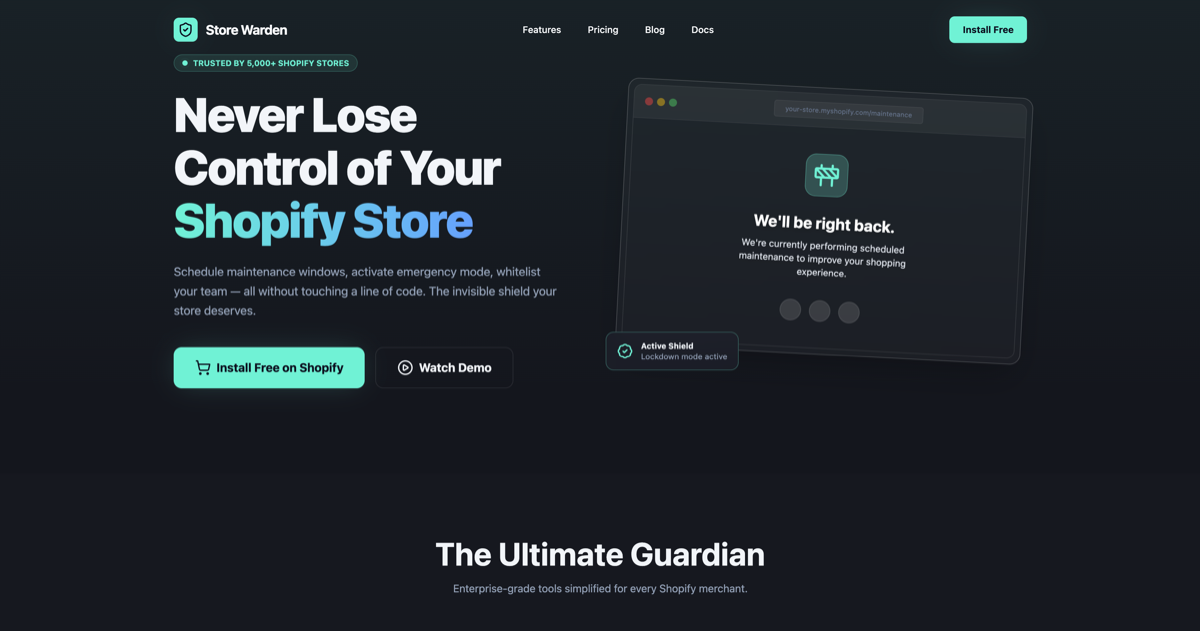
This is where a tool like Store Warden becomes invaluable. Store Warden handles maintenance windows, emergency lockdowns, IP whitelisting, scheduled downtime, and custom maintenance pages automatically. It's trusted by 5,000+ Shopify stores for a reason.
Key Features and How They Help:
-
Maintenance Mode & Custom Pages:
- Benefit: Instantly put your entire store into a fully customizable maintenance mode. Design beautiful, on-brand "Coming Soon" or "Under Maintenance" pages with rich content, images, and calls to action (e.g., "Notify Me When We're Back").
- How it works: With a few clicks in the app, you activate a custom page that all public visitors see. Your actual store content remains hidden and safe.
-
IP Whitelisting:
- Benefit: This is a game-changer for development teams and agencies. You can specify a list of IP addresses (your office, your developers' IPs, QA team) that can bypass the maintenance page and access the live store while it's under protection. This allows you to test updates in a live environment without exposing anything broken to the public.
- How it works: You simply enter the allowed IP addresses or ranges into the Store Warden app settings. Any visitor from these IPs will see your normal store; everyone else sees the maintenance page. This is paramount for ensuring quality control.
-
Scheduled Downtime:
- Benefit: Plan your updates with precision. Schedule maintenance windows in advance, and Store Warden will automatically activate and deactivate the protection at the exact times you specify. This eliminates the risk of forgetting to turn off maintenance mode or manually scrambling to activate it.
- How it works: Set start and end times in the app. Store Warden takes care of the rest, giving you peace of mind.
-
Emergency Lockdown:
- Benefit: For unexpected critical issues – a sudden bug, a security vulnerability, or an app breaking your checkout – you need to act fast. An emergency lockdown lets you hide your store instantly.
- How it works: A single button in the Store Warden app immediately activates protection, buying you crucial time to diagnose and fix the problem without losing more revenue or reputation.
-
SEO-Friendly Status Codes (503 Service Unavailable):
- Benefit: Unlike Shopify's password page (which returns 200 OK) or often custom Liquid pages, Store Warden serves a proper HTTP 503 "Service Unavailable" status code to search engine crawlers. This tells Google that your site is temporarily down for maintenance and they should come back later, without negatively impacting your SEO rankings.
- How it works: Store Warden handles the technical implementation to ensure the correct headers are sent, protecting your search visibility.
-
Analytics Integrity:
- Benefit: Most dedicated apps can integrate with or provide options to filter out internal traffic, ensuring your analytics data isn't skewed by your team's activity during maintenance.
When to Choose an App like Store Warden:
- You're a growing store: As your revenue increases, the cost of downtime skyrockets. Professional protection becomes an investment, not an expense.
- You frequently update: If you're regularly deploying new features, products, or theme changes, manual methods are too time-consuming and risky.
- You work with developers or agencies: IP whitelisting is non-negotiable for collaborative development and QA.
- You care about branding & SEO: You want a polished maintenance experience that doesn't hurt your search rankings.
- You value automation & peace of mind: Let the app handle the technicalities so you can focus on your business.
Best Practices for Seamless Shopify Updates
Regardless of the method you choose, follow these best practices for smooth, secure updates:
-
Always Test in a Staging Environment First:
- Theme Duplication: For theme changes, always duplicate your live theme (
Online Store > Themes > Actions > Duplicate) and make changes in the unpublished duplicate. You can preview it with the "Share preview" link. - Staging Apps: For more complex app integrations or entire store migrations, consider a dedicated Shopify staging environment app (e.g., Rewind Staging, Staging by Bold). These create a separate, password-protected copy of your store for testing.
- Why: Never experiment directly on your live store. Find bugs and resolve conflicts in a safe space.
- Theme Duplication: For theme changes, always duplicate your live theme (
-
Backup Your Store:
- Theme: Always duplicate your theme before making major code changes.
- Data: For critical data, use a backup app like Rewind or Backups by Storetasker. While Shopify has internal backups, these apps provide granular, on-demand restoration capabilities.
-
Schedule Updates During Off-Peak Hours:
- Identify your store's lowest traffic times (often late night or early morning in your primary customer's timezone).
- This minimizes potential revenue loss and customer disruption if something goes wrong.
-
Communicate Proactively (If Necessary):
- For planned, significant downtime, consider informing your customers via email, social media, or a banner on your site before the maintenance window. Transparency builds trust.
- On your maintenance page itself, include an estimated return time, social media links, and an optional email sign-up for notifications.
-
Develop a Pre- and Post-Update Checklist:
- Pre-Update:
- Confirm backup is complete.
- Notify team members.
- Activate maintenance mode (or password protection).
- Confirm maintenance page is visible to public, but accessible to whitelisted IPs.
- Post-Update:
- Verify all critical paths: homepage, product pages, collection pages, search, cart, checkout, account login.
- Check responsiveness across devices.
- Test all payment gateways.
- Review app integrations.
- Check for broken links (404 errors) using a tool or browser extension.
- Deactivate maintenance mode.
- Confirm store is fully public.
- Pre-Update:
-
Monitor Your Store Immediately After Re-Launch: Store Warden handles the protection side. Understanding what actually happened during and after your maintenance window is a different problem. Flow Recorder captures session replays so you can see exactly how users behaved when your store came back — which pages confused them, where they dropped off, what the update broke. This gives you invaluable insights into real user experience post-update.
Conclusion
Protecting your Shopify store during updates isn't just about preventing errors; it's about safeguarding your brand, revenue, and customer trust. While Shopify's built-in password protection offers a basic solution, growing businesses and agencies demand more sophisticated control. Manual theme edits can provide customization but come with complexity and risk.
For a truly professional approach that includes IP whitelisting, scheduled downtime, emergency lockdown, and SEO-friendly maintenance pages, a dedicated app is the clear choice.
Why risk your hard-earned reputation and revenue with partial solutions? Store Warden handles this automatically, providing robust protection and peace of mind.
Install Store Warden for free on the Shopify App Store and manage your maintenance windows like a pro. Learn more about our features and pricing, or check out our documentation for detailed guides.
Written by Ratul Hasan, a developer and SaaS builder behind a suite of tools for ecommerce operators and product teams. He built Store Warden to give Shopify merchants enterprise-grade store protection without touching a line of code — alongside Trust Revamp for product reviews, and Flow Recorder for session analytics. Find him at ratulhasan.com. GitHub LinkedIn
Keep Exploring
Mastering Shopify Customization: Top No-Code Tools for Merchants
Unlock powerful Shopify customizations without code. Discover the best no-code tools for page building, theme editing, and conversion optimization.
Shopify App Embed Blocks vs. App Blocks: The Expert Guide to Seamless Theme Integration
Understand the critical differences between Shopify App Embed Blocks and App Blocks to optimize your store's performance and theme integration. A must-read for merchants and agencies.
Shopify OS 2.0 App Blocks: The Complete Guide for Merchants & Developers
Unlock flexible store customization with Shopify Online Store 2.0 app blocks. A practical guide for merchants and developers to integrate apps directly into themes.