Shopify OS 2.0 App Blocks: The Complete Guide for Merchants & Developers
Ratul Hasan
Strategy Lead • Store Warden
Shopify OS 2.0 App Blocks: The Complete Guide for Merchants & Developers
For years, integrating third-party app functionality into your Shopify store often meant wrestling with complex code snippets, {% include %} hacks, or even compromises on page performance. You had to choose between powerful features and a clean, maintainable theme. That all changed with Online Store 2.0 (OS 2.0) and the introduction of App Blocks.
This isn't just a technical upgrade; it's a fundamental shift in how you build and manage your Shopify storefront. It gives you unprecedented control over app content placement directly within the theme editor, enabling faster iterations, better site performance, and ultimately, higher conversions. If your store still struggles with rigid layouts or messy app integrations, understanding app blocks is your next critical step.
Understanding the "Why": The OS 2.0 Revolution and App Blocks
Before OS 2.0, apps often injected their functionality by modifying your theme files or using script tags that were hard to control and debug. This led to "app bloat," performance issues, and a frustrating experience for merchants trying to customize their store’s layout. Any change to where a review widget or an upsell offer appeared often required a developer, eating into your budget and delaying critical updates.
Online Store 2.0 fundamentally reimagined Shopify themes, primarily through "Sections Everywhere" and JSON templates. Instead of rigid template.liquid files, every page could be built using dynamic sections, each with its own settings.
App Blocks are the natural evolution of this modularity for third-party apps. They allow app developers to define pre-built components that you can drag and drop into any section or template directly from the Shopify Theme Editor. Think of it like this: your theme provides the canvas and the major sections, and app blocks are the specific, functional widgets (like a customer review star rating or a "frequently bought together" recommendation) that you can position with ease, without touching a single line of code.
The core benefits for your store are immense:
- Unprecedented Control: Place app features exactly where they make the most sense for your customers, optimizing UX and conversion funnels.
- Cleaner Code & Better Performance: Apps no longer need to hack into your theme files, reducing technical debt and often improving page load times.
- Faster Iteration: Test new app placements or feature combinations in minutes, not hours or days, directly from the theme editor. This means you can react quicker to market trends or A/B test without developer intervention.
- Future-Proofing: Your store becomes more resilient to theme updates or app changes because the integration method is standardized.
What Exactly ARE Shopify App Blocks?
At their heart, Shopify App Blocks are a type of "block" that an app declares and makes available to your theme. Just like a theme block (e.g., a text block or an image block within a section), an app block has its own settings, can be moved around, and is rendered as part of your theme's Liquid.
They are defined by the app developer within their app's theme app extension configuration (typically in a shopify.app.toml file) and rendered using Liquid files that live within your theme's sections or blocks directories, often prefixed with app-blocks/.
When you open your theme editor and click "Add block" or "Add section," you'll see a new category dedicated to "Apps." This is where the magic happens – every block listed there is an app block, ready for you to deploy.
For Merchants: How to Use App Blocks in Your Shopify Store
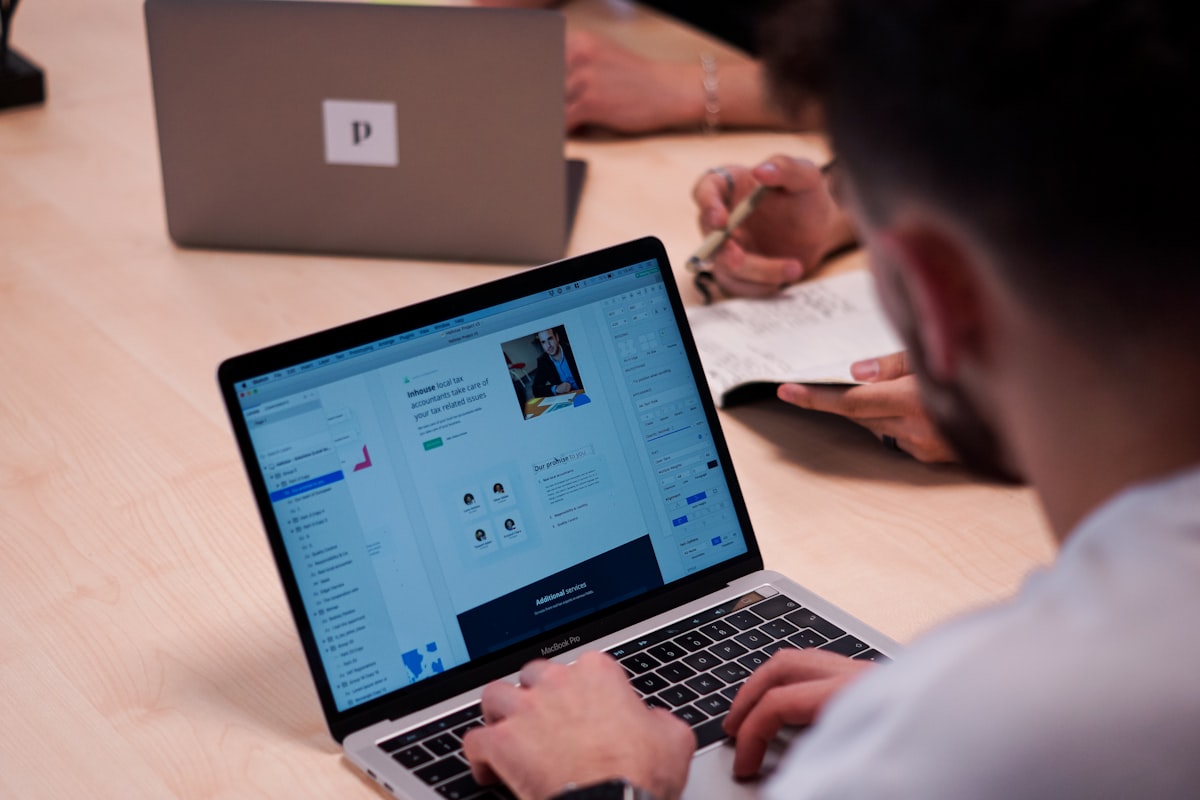
If you're managing a Shopify store, app blocks empower you to take charge of your storefront's layout and functionality like never before. Here’s how you'll typically interact with them:
1. Finding and Adding App Blocks
- Navigate to the Theme Editor: From your Shopify admin, go to Online Store > Themes. Find your current theme and click Customize.
- Select a Template: Use the dropdown at the top of the theme editor to choose the page template you want to modify (e.g., "Products > Default product," "Collections > Default collection," "Pages > Default page").
- Add a Section or Block:
- To add a new section that contains app blocks (e.g., a reviews section), scroll down the sidebar on the left and click Add section. Look for app-specific sections, often labeled with the app's name.
- More commonly, you'll add an app block within an existing section. Select the section where you want to add the app block (e.g., the "Product information" section on a product page).
- Within that section's settings, you'll see an Add block button. Click it.
- Locate App Blocks: In the "Add block" panel, you'll find a dedicated Apps category, usually at the bottom or clearly separated. Browse the available app blocks from your installed apps.
- Drag and Drop: Click on the app block you want to add. It will appear in the chosen section. You can then drag it to your desired position within that section, relative to other blocks like product title, price, or description.
Example: Let's say you want to add a "Frequently Bought Together" widget from an upsell app.
- Go to your
Default producttemplate. - Find the
Product informationsection. - Click
Add block. - Under
Apps, select[Your Upsell App Name] - Frequently Bought Together. - Drag the newly added block to appear just above your
Add to cartbutton.
2. Customizing App Block Settings
Once an app block is added, you can customize its appearance and behavior without writing any code.
- Select the App Block: In the theme editor sidebar, click on the app block you just added (or an existing one).
- Adjust Settings: The right-hand sidebar will display settings specific to that app block. These settings are defined by the app developer and might include:
- Visuals: Colors, fonts, layout styles, number of items to display.
- Content: Heading text, filtering options (e.g., "Show reviews with 4 stars or more").
- Functionality: Which product recommendations to show, whether to enable a specific popup.
- Save Changes: After adjusting the settings, click Save in the top right corner of the theme editor. The changes will instantly reflect on your live store (or selected preview).
This level of granular control means you can perfectly align app functionality with your brand's aesthetic and your store's specific conversion goals.
3. Placement and Visibility
App blocks offer incredible flexibility in where they can be placed:
- Product Pages: Add review widgets, upsell bundles, trust badges, size charts, or loyalty program info directly into your product forms or below the description.
- Collection Pages: Display a "Shop the Look" section from a merchandising app, or a "New Arrivals" list from a product recommendation app.
- Home Page: Feature app-driven content like recent customer testimonials, a dynamic product grid, or a countdown timer for a sale.
- Any Custom Page: If an app block is designed to be universal, you can add it to custom pages like your "About Us" or "FAQ" to include dynamic content or calls to action.
Many app blocks are designed with "targets," meaning they can only be placed in certain areas (e.g., only on product pages). The theme editor will guide you on where each block can be added.
For Developers & Advanced Merchants: Implementing App Blocks
If you're building themes, developing apps, or managing client stores as an agency, understanding the technical underpinnings of app blocks is crucial. It allows for deeper integration and more robust solutions.
1. The shopify.app.toml Configuration
The declaration of an app block happens within the app's shopify.app.toml file, which defines the app's extensions. Specifically, theme app extensions are used to expose blocks to the theme editor.
Here’s a simplified example of how an app might declare a "Product Reviews Widget" block:
Source Code# shopify.app.toml

scopes = "write_products,write_themes" # Ensure necessary scopes are declared

[[extensions.theme]]
name = "My Reviews App Theme Extension"
type = "theme"

  [[extensions.theme.blocks]]
  name = "Product Reviews Widget"
  target = "section" # Or "product_information", "all", etc.
  limit = 1 # Optional: restricts to one instance per section/template
  type = "app-blocks/product-reviews-widget" # A unique identifier for the block
  default_template = "templates/product.json" # Where this block is pre-added by default

  # The Liquid file that will render this block
  render_path = "app-blocks/product-reviews-widget.liquid"

  # Settings for the merchant in the theme editor
  [[extensions.theme.blocks.settings]]
  type = "text"
  id = "heading"
  label = "Reviews Heading"
  default = "What Our Customers Say"

  [[extensions.theme.blocks.settings]]
  type = "range"
  id = "num_reviews"
  label = "Number of reviews to show"
  min = 1
  max = 10
  step = 1
  default = 3
Key properties explained:
target: Defines where the block can be added. Common targets includesection(can be placed in any section),product_information(specifically for the main product details section),all(can be added anywhere), or specific section names.type: A unique handle for the block (e.g.,app-blocks/my-custom-block). This is how your theme identifies it.render_path: Points to the Liquid file that will be responsible for rendering the block's output in the storefront. This file lives within your theme.settings: An array of schema objects that define the configurable options for the block within the theme editor (e.g., text inputs, dropdowns, range sliders). These are critical for merchant usability.
2. The Liquid Rendering File
The render_path in your shopify.app.toml points to a Liquid file within the theme's structure. This file is responsible for receiving the block's settings and rendering the actual HTML and data.
Continuing the example, the app-blocks/product-reviews-widget.liquid file might look like this:
Source Code{% comment %}
  app-blocks/product-reviews-widget.liquid
  This file renders the product reviews widget based on block settings.
{% endcomment %}

{% liquid
  assign block_heading = block.settings.heading
  assign num_reviews_to_show = block.settings.num_reviews

  # You would typically fetch actual review data here.
  # This might involve:
  # 1. Making an API call to your app's backend (server-side, not directly in Liquid)
  # 2. Reading metafields populated by your app
  # 3. Using app proxy to fetch dynamic content
  # For this example, we'll simulate.
  assign simulated_reviews = '
    [
      { "author": "Alice", "rating": 5, "comment": "Great product, highly recommend!" },
      { "author": "Bob", "rating": 4, "comment": "Good quality, fast shipping." },
      { "author": "Charlie", "rating": 5, "comment": "Transformed my workflow!" },
      { "author": "David", "rating": 3, "comment": "It\'s okay, but expected more." }
    ]' | parse_json

  assign current_product_id = product.id # Assuming this block is on a product page
  # In a real app, you'd filter/fetch reviews specific to current_product_id
%}

<div class="product-reviews-widget app-block" data-product-id="{{ current_product_id }}">
  {% if block_heading != blank %}
    <h2 class="h3">{{ block_heading }}</h2>
  {% endif %}

  <div class="reviews-list">
    {% if simulated_reviews.size > 0 %}
      {% for review in simulated_reviews limit: num_reviews_to_show %}
        <div class="review-item">
          <div class="review-header">
            <span class="review-author">{{ review.author }}</span>
            <span class="review-rating">{{ review.rating }} out of 5 stars</span>
          </div>
          <p class="review-comment">{{ review.comment }}</p>
        </div>
      {% endfor %}
    {% else %}
      <p>No reviews yet. Be the first!</p>
    {% endif %}
  </div>

  <button class="button">Write a Review</button>
</div>

<style>
  /* Basic styling for the widget */
  .product-reviews-widget {
    border-top: 1px solid #eee;
    padding-top: 20px;
    margin-top: 30px;
  }
  .review-item {
    margin-bottom: 15px;
    padding-bottom: 15px;
    border-bottom: 1px dashed #eee;
  }
  .review-header {
    display: flex;
    justify-content: space-between;
    font-weight: bold;
    margin-bottom: 5px;
  }
  .review-rating {
    color: #f90;
  }
</style>
Key points for the Liquid file:
- Accessing Settings: Block settings are available via the
block.settingsobject (e.g.,block.settings.heading). - Contextual Data: The Liquid file has access to global Liquid objects like
product,collection,customer, etc., depending on the template it's rendered in. This is crucial for displaying relevant information (e.g., reviews for thecurrent_product). - Data Fetching: Real app blocks won't usually have hardcoded data. They will either:
- Fetch data via an App Proxy for server-side generated content.
- Use JavaScript to fetch data from the app's API client-side.
- Read metafields that the app has populated.
- Styling: You can embed
styletags directly within the Liquid file for contained styling, or the app might link to its own CSS resources.
3. Integrating App Blocks into Existing Sections (type: @app)
For more precise control, you can define an app block directly within a theme section's schema using type: @app. This is useful when an app block is intended to replace or augment a specific, predefined part of a theme section (e.g., an app's size chart replacing a theme's default size chart).
Consider a main-product.liquid section:
Source Code{% schema %}
{
  "name": "Main Product",
  "blocks": [
    {
      "type": "@app", # This declares an app block
      "name": "App Block Placeholder",
      "target": "section" # Must be "section" when declared this way
    },
    {
      "type": "text",
      "name": "Product Description",
      "settings": [
        {
          "type": "richtext",
          "id": "text",
          "label": "Text"
        }
      ]
    }
  ]
}
{% endschema %}

{% liquid %}
  <div class="main-product-section">
    {% for block in section.blocks %}
      {% case block.type %}
        {% when '@app' %}
          {{ block }} # Renders the app block content
        {% when 'text' %}
          <div class="product-description">{{ block.settings.text }}</div>
      {% endcase %}
    {% endfor %}
  </div>
{% endliquid %}
In this setup, the theme defines a placeholder block of type: @app. When a merchant drags an actual app block from the Apps category into this specific @app placeholder in the theme editor, it replaces that placeholder, and the app block's content is rendered. This offers powerful collaboration between app and theme developers.
Best Practices for Developers:
- Keep Blocks Focused: Each app block should ideally serve a single, clear purpose. Avoid "monolithic" blocks that try to do too much.
- Provide Clear Settings: The
settingsinshopify.app.tomlare the merchant's interface. Make them intuitive, well-labeled, and provide sensible defaults. - Performance First: Design your blocks to be performant. Minimize external script/stylesheet loading and ensure efficient data fetching.
- Graceful Degradation: What happens if the app is uninstalled, or a block's data isn't available? Ensure your Liquid rendering file handles these scenarios gracefully to avoid broken storefronts.
- Version Control: Treat your theme app extensions like any other code. Use version control for your
shopify.app.tomland Liquid rendering files.
Common Use Cases & Strategic Implementation
App blocks open up a world of possibilities for customizing your store. Here are some strategic ways merchants and developers leverage them:
- Enhancing Product Pages:
- Review Widgets: Place star ratings, full reviews, or review submission forms anywhere on the product page (e.g., right under the title, above the add-to-cart button, or in a dedicated tab).
- Upsell/Cross-sell Offers: Dynamically show "Frequently Bought Together" bundles or "Customers Also Viewed" products near the purchase decision point.
- Trust Badges/Payment Icons: Instill confidence by placing trust seals or accepted payment methods directly in the product form.
- Size Charts/Product Guides: Link to or embed a dynamic size chart from an app.
- Boosting Collection Pages:
- Dynamic Filters: Integrate advanced filtering and sorting options from a search and filter app directly into your collection layout.
- Category-Specific Banners: Use an app to display unique promotional banners or messaging based on the collection being viewed.
- Optimizing the Homepage:
- Social Proof: Showcase recent purchases, popular products, or a live sales feed from an app.
- Dynamic Countdown Timers: Create urgency for sales or product launches.
- Customer Loyalty & Engagement:
- Loyalty Points Display: Show a customer's loyalty points balance or current tier directly in the cart or customer account page.
- Wishlist Buttons: Add a wishlist button to product cards or product pages.
These are just a few examples. The modular nature of app blocks means that as new apps emerge, your ability to integrate and customize your storefront will continue to grow exponentially.
Maintaining Your Customizable Storefront
The power of app blocks lies in their flexibility, but with great power comes great responsibility. The more dynamic and interconnected your storefront becomes, the more points of interaction exist – between your theme, your apps, and your customizations. Making changes with app blocks, while intuitive, can still introduce unexpected issues if done directly on a live store without proper testing. A misconfigured setting, a new app block with conflicting styles, or even an app update could lead to visual glitches or broken functionality.
This is where Store Warden steps in. Before you push a critical update or activate a new app with complex blocks, using Store Warden's maintenance windows allows you to test changes on a protected version of your store. You can preview new app block layouts, verify functionality, and ensure everything looks perfect on a scheduled downtime that shields your customers from any visual glitches or broken experiences. You can deploy app blocks with confidence, knowing you have a safety net.
Advanced Tips & Troubleshooting
- Test on a Staging Theme: Always create a duplicate of your live theme and test new app blocks or significant layout changes there first. This is non-negotiable for any serious merchant.
- Check App Documentation: Reputable apps provide clear guides on how to use their app blocks and troubleshoot common issues.
- Performance Monitoring: Keep an eye on your store's page speed metrics. While app blocks are generally more performant than older methods, heavy app integrations can still impact load times. Use tools like Google Lighthouse.
- Conflicting Styles: Occasionally, an app block's default styling might conflict with your theme's CSS. You might need a small amount of custom CSS (via the theme editor's custom CSS option) to override unwanted styles.
- App Block Not Appearing?
- Is the App Installed and Enabled? Obvious, but worth checking.
- Is Your Theme OS 2.0 Compatible? App blocks only work with OS 2.0 themes.
- Check the
target: The app block might only be available for specific page templates or sections. The theme editor will usually grey out options if they're not valid. - App Extension Sync: Sometimes, after installing or updating an app, it takes a moment for the theme app extension to sync with your theme. Clear your browser cache and try again.
The Future is Modular: Building Resilient Stores
Shopify App Blocks are a game-changer for storefront customization and maintenance. They represent Shopify's commitment to giving merchants and developers powerful, flexible tools that reduce complexity and accelerate growth. By embracing app blocks, you're not just adding features; you're building a more agile, high-performing, and future-proof online store.
Even with the best modular architecture, unexpected issues can arise — a misconfigured app block, a conflicting update, or even a simple human error during a rapid deployment. For high-volume merchants, even a few minutes of downtime can mean losing significant revenue. Consider a store grossing $324,000 annually; that's approximately $0.62 per minute. If you lose just 15 minutes of sales due to a broken layout from a misconfigured app block, that's almost $10 lost directly, not counting the long-term damage to customer trust and SEO. Store Warden's emergency lockdown feature provides an instant "panic button" to secure your storefront if something goes wrong, allowing you to debug without losing more sales or customer confidence. It’s about protecting your revenue and reputation.
By understanding and strategically implementing Shopify App Blocks, you empower your store to adapt, grow, and convert more effectively. And by pairing this flexibility with robust protection, you ensure that your investment in powerful app integrations always pays off.
Store Warden handles this automatically. Install free on the Shopify App Store.
Written by Ratul Hasan, a developer and SaaS builder behind a suite of tools for ecommerce operators and product teams. He built Store Warden to give Shopify merchants enterprise-grade store protection without touching a line of code — alongside Trust Revamp for product reviews, Flow Recorder for session analytics Pay Checkmate for Payroll management and Custom Role Creator for user role based access control. All his projects live at besofty.com. Find him at ratulhasan.com. GitHub LinkedIn
Keep Exploring

Mastering Shopify Customization: Top No-Code Tools for Merchants
Unlock powerful Shopify customizations without code. Discover the best no-code tools for page building, theme editing, and conversion optimization.
Shopify App Embed Blocks vs. App Blocks: The Expert Guide to Seamless Theme Integration
Understand the critical differences between Shopify App Embed Blocks and App Blocks to optimize your store's performance and theme integration. A must-read for merchants and agencies.

Shopify Theme App Extensions Explained: Future-Proofing Your Store for Stability & Speed
Demystify Shopify Theme App Extensions. Learn how they prevent theme breakage, simplify app integration, and future-proof your store for seamless upgrades and peak performance.